

Modern businesses depend on reliable video communication. Remote work and hybrid teams make professional video conferencing installation essential for daily operations. However, choosing between Microsoft Teams Rooms and Zoom Rooms creates challenges for IT managers and business leaders planning their video conferencing installation projects.
Both platforms deliver professional video experiences when properly installed. Each has distinct advantages, technical requirements, and cost structures. Understanding these differences ensures your video conferencing installation delivers the right solution for your specific needs.
This comprehensive guide compares Microsoft Teams Rooms and Zoom Rooms across every critical factor. You’ll learn about hardware requirements, installation complexity, ongoing costs, and real-world performance. By the end, you’ll know exactly which platform fits your organization and how to implement a successful video conferencing installation.
Understanding Video Conferencing Room Systems
Video conferencing installation projects transform ordinary meeting spaces into professional collaboration environments. They integrate cameras, microphones, speakers, displays, and control systems into unified solutions.
Key Components:
- High-definition cameras with intelligent framing
- Professional-grade microphones and speakers
- One or more large displays
- Touch panel or controller for meeting management
- Dedicated computing device running room software
- Network connectivity (wired and wireless)
These systems differ from personal video conferencing. Desktop solutions work for individuals. Room systems serve groups of 4-20+ people in dedicated meeting spaces.
Business Benefits:
Professional video conferencing installation delivers:
- Consistent meeting experiences across all conference rooms
- Simple one-touch meeting launch
- Superior audio and video quality
- Seamless calendar integration
- Reduced IT support requirements
- Professional appearance for client meetings
Quality video conferencing installation ensures these benefits become reality rather than expensive disappointments.
Microsoft Teams Rooms: Platform Overview
Microsoft Teams Rooms (MTR) provides native integration with the Microsoft 365 ecosystem. Organizations already using Teams for messaging and collaboration find MTR video conferencing installation a natural extension.
Core Features:
One-Touch Join: Walk into the room and tap the scheduled meeting on the touch console. The system connects immediately.
Dual Display Support: Show meeting participants on one screen and content on another. This improves engagement and collaboration.
Teams Integration: Direct connection to your organization’s Teams environment. No separate accounts or logins required.
Content Sharing: Wireless presentation from laptops and mobile devices. Multiple participants can share simultaneously.
Intelligent Features: AI-powered background noise suppression, automatic framing, and speaker tracking enhance meeting quality.
Platform Compatibility:
MTR primarily serves Teams meetings. However, Microsoft added Zoom interoperability. Users can join Zoom meetings from Teams Rooms, though with some feature limitations.
This flexibility helps organizations standardized on Teams while maintaining compatibility with external partners using Zoom.
Licensing Requirements:
Teams Rooms require specific licenses beyond standard Microsoft 365 subscriptions:
- Teams Rooms Basic: Free for up to 25 rooms
- Teams Rooms Pro: $40 per room per month (advanced features)
These licenses grant room functionality. Individual users still need their own Microsoft 365 licenses.
Zoom Rooms: Platform Overview
Zoom Rooms offers straightforward deployment focused on Zoom’s core video platform. Organizations preferring Zoom’s interface and features find Zoom Rooms video conferencing installation intuitive and reliable.
Core Features:
Simple Interface: Clean, minimal design reduces user confusion. Non-technical employees start meetings confidently.
Zoom Meeting Native: Optimized specifically for Zoom meetings. All Zoom features work without limitations.
Room Scheduling: Direct calendar integration shows availability and upcoming meetings on the room display.
Wireless Sharing: Present content without cables using Zoom’s wireless sharing protocol.
Virtual Backgrounds: Apply virtual backgrounds to entire rooms, not just individuals. This creates a consistent professional appearance.
Platform Flexibility:
Zoom Rooms can join meetings on other platforms through various methods:
- Direct Zoom meeting hosting
- SIP/H.323 integration for traditional video systems
- Calendar integration with Google, Microsoft, and others
This flexibility serves organizations with diverse video conferencing installation needs.
Licensing Structure:
Zoom Rooms require:
- Zoom Rooms License: $49 per room per month
- Zoom Workplace License: Recommended for full features
Individual users need Zoom licenses to host meetings. The room license enables the dedicated room device.
Hardware Requirements and Compatibility
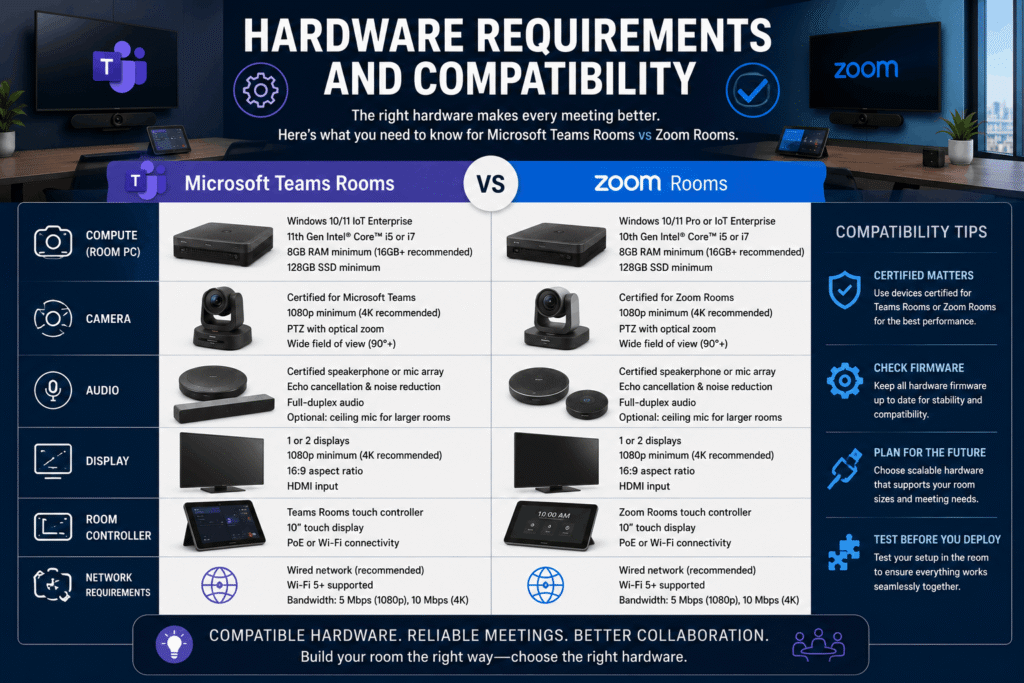
Both platforms support extensive hardware choices for video conferencing installation. This flexibility allows customization based on room size, budget, and specific requirements.
Microsoft Teams Rooms Certified Devices:
Major manufacturers offer MTR-certified solutions:
Small Rooms (4-6 people):
- Logitech Rally Bar Mini: $2,500-$3,000
- Yealink MeetingBar A20: $1,800-$2,200
- Poly Studio X30: $2,000-$2,500
Medium Rooms (6-12 people):
- Logitech Rally Bar: $3,500-$4,000
- Yealink MeetingBar A30: $2,800-$3,200
- Poly Studio X50: $3,200-$3,800
Large Rooms (12+ people):
- Logitech Rally Plus: $4,500-$5,500
- Poly Studio E70: $4,000-$5,000
- Crestron Flex systems: $5,000-$8,000+
Zoom Rooms Certified Devices:
Similar manufacturer support with Zoom-specific certification:
Small Rooms:
- Logitech Rally Bar Mini (Zoom): $2,500-$3,000
- DTEN D7: $3,000-$3,500
- Neat Bar: $2,800-$3,200
Medium Rooms:
- Logitech Rally Bar (Zoom): $3,500-$4,000
- DTEN ME: $4,500-$5,000
- Neat Board: $5,500-$6,500
Large Rooms:
- Poly Studio systems: $4,000-$5,000
- Crestron Zoom Room solutions: $5,000-$10,000+
Important Compatibility Note:
Most manufacturers produce platform-specific versions. A Teams Rooms device requires different software than a Zoom Rooms device. Verify platform compatibility before purchasing equipment for your video conferencing installation.
However, some modern all-in-one devices support both platforms through software switching. This flexibility helps organizations hedging platform decisions.
Professional commercial AV systems specialists guide hardware selection based on your specific room dimensions and usage patterns.
Installation Requirements and Complexity
Successful video conferencing installation requires proper planning, skilled technicians, and attention to numerous technical details.
Pre-Installation Planning:
Room Assessment:
- Measure room dimensions
- Evaluate acoustics and background noise
- Assess lighting conditions
- Identify optimal camera placement
- Determine display mounting locations
Network Infrastructure:
- Verify adequate bandwidth (minimum 4 Mbps upload/download per room)
- Ensure quality of service (QoS) configuration
- Confirm wired Ethernet availability
- Test WiFi coverage for wireless sharing
- Validate firewall and port configurations
Power Requirements:
- Dedicated circuits for displays and equipment
- Surge protection
- Cable management for power distribution
- UPS backup for critical systems
Poor planning creates problems during video conferencing installation. Rooms that look complete may suffer poor audio, inadequate lighting, or network connectivity issues.
Physical Installation Steps:
Display Mounting: Proper display placement ensures all participants see content clearly during video conferencing installation. Height, viewing angle, and distance all matter.
- Wall mount at appropriate height (typically 48-60 inches to center)
- Verify wall structure supports weight
- Run power and data cables through walls
- Cable management for clean appearance
Camera Positioning: Camera placement dramatically affects meeting experience. Wrong positioning creates awkward angles or excludes participants.
- Mount at eye level for natural perspective
- Position to capture all seating positions
- Ensure adequate distance for proper framing
- Account for furniture and room layouts
Audio System Installation: Audio quality matters more than video in any video conferencing installation. Poor audio ruins meetings even with perfect video.
- Ceiling microphone arrays for best pickup
- Speaker placement for even coverage
- Acoustic treatment if needed
- Cable runs for microphones and speakers
Control System Setup: Touch panels or controllers provide the interface users interact with daily.
- Mounted at accessible height near room entrance
- Wired connection for reliability
- Programmed for simple operation
- Labeled clearly for user guidance
Quality audio visual systems installation ensures all components work together seamlessly.
Network Configuration:
Wired Connection (Recommended):
- Dedicated Ethernet drop to room system
- Minimum Cat6 cabling for reliability
- VLAN configuration for traffic separation
- QoS settings for prioritized video traffic
Firewall Configuration:
- Open required ports for platform communication
- Whitelist necessary domains and IP ranges
- Configure security policies
- Test connectivity before deployment
Proper structured network cabling prevents connectivity problems that plague poorly installed systems.
Software Configuration:
Microsoft Teams Rooms:
- Join room device to Azure Active Directory
- Assign room license and resource account
- Configure room-specific settings
- Test calendar integration
- Validate meeting join functionality
Zoom Rooms:
- Create Zoom Rooms account
- Link to organizational Zoom account
- Configure calendar integration (Exchange, Google, etc.)
- Set room-specific preferences
- Test scheduling and joining
Testing and Validation:
Comprehensive testing catches problems before users encounter them during video conferencing installation:
- Audio quality test at various positions
- Video quality and framing validation
- Content sharing from multiple devices
- Calendar integration verification
- Network performance under load
- Backup systems and redundancy
Professional installers document all settings and configurations. This documentation proves invaluable for troubleshooting and future modifications.
Comparing Total Cost of Ownership
Understanding complete costs prevents budget surprises during video conferencing installation planning. Initial hardware represents only part of total investment.
Hardware Costs:
Small Room System:
- Equipment: $2,500-$3,500
- Installation labor: $1,500-$2,500
- Cabling and infrastructure: $800-$1,500
- Total: $4,800-$7,500
Medium Room System:
- Equipment: $3,500-$5,000
- Installation labor: $2,000-$3,500
- Cabling and infrastructure: $1,200-$2,000
- Total: $6,700-$10,500
Large Room System:
- Equipment: $5,000-$10,000
- Installation labor: $3,000-$5,000
- Cabling and infrastructure: $2,000-$3,500
- Total: $10,000-$18,500
Ongoing Subscription Costs:
Microsoft Teams Rooms:
- Basic: Free (up to 25 rooms)
- Pro: $40/room/month ($480/year)
- Microsoft 365 licenses: Already required for most organizations
Zoom Rooms:
- Room License: $49/room/month ($588/year)
- Zoom Workplace: Variable based on user count
- Additional user licenses: $150-$200/user/year
Three-Year Total Cost Example (Medium Room):
Teams Rooms Pro:
- Hardware/Installation: $8,500
- 3-year subscription: $1,440
- Total: $9,940
Zoom Rooms:
- Hardware/Installation: $8,500
- 3-year subscription: $1,764
- Total: $10,264
Cost differences remain relatively modest. Platform choice should prioritize functionality and existing infrastructure over small price variations in video conferencing installation budgets.
Hidden Costs to Consider:
- IT support and management time
- Software updates and patches
- Hardware replacement cycles (5-7 years)
- Network bandwidth increases
- User training and documentation
Feature Comparison: Teams Rooms vs Zoom Rooms
Direct feature comparison reveals platform strengths and limitations for your video conferencing installation.
Meeting Features:
| Feature | Teams Rooms | Zoom Rooms |
| One-touch join | Yes | Yes |
| Dual displays | Yes | Yes |
| Wireless sharing | Yes | Yes |
| Recording | Yes | Yes |
| Breakout rooms | Limited | Full support |
| Whiteboarding | Yes | Yes |
| Live transcription | Yes | Yes |
| Background effects | Limited | Full support |
Integration Capabilities:
Teams Rooms Strengths:
- Native Microsoft 365 integration
- SharePoint and OneDrive access
- Outlook calendar deep integration
- Azure Active Directory authentication
- Microsoft ecosystem consistency
Zoom Rooms Strengths:
- Platform-agnostic calendar support
- Broader third-party integrations
- Simpler external guest access
- Flexible authentication options
- Works with non-Microsoft environments
Management and Monitoring:
Teams Rooms:
- Microsoft Teams Admin Center management
- Azure-based monitoring and analytics
- Centralized policy deployment
- Integration with Microsoft Endpoint Manager
- Detailed usage and quality reports
Zoom Rooms:
- Zoom Rooms Dashboard for management
- Real-time monitoring and alerts
- Centralized configuration management
- Third-party device management integration
- Usage analytics and reporting
Both platforms provide robust management tools for video conferencing installation projects. Choice often depends on existing IT infrastructure and administrative preferences.
User Experience and Adoption
Technology succeeds only when people actually use it. User experience directly impacts adoption rates and ROI for your video conferencing installation.
Microsoft Teams Rooms User Experience:
Strengths:
- Familiar interface for Teams users
- Consistent with desktop Teams experience
- Quick meeting join from calendar
- Straightforward content sharing
Challenges:
- Learning curve for non-Teams users
- Occasional compatibility issues with Zoom meetings
- Feature limitations when joining third-party platforms
Zoom Rooms User Experience:
Strengths:
- Extremely simple, intuitive interface
- Minimal training required
- Consistent experience across devices
- Reliable connection quality
Challenges:
- Less integration with Microsoft ecosystem
- Requires separate Zoom familiarity
- Multiple platforms for users (Teams chat + Zoom meetings)
Training Requirements:
Both systems benefit from basic user training after video conferencing installation:
- How to start scheduled meetings
- Content sharing procedures
- Adjusting camera and audio settings
- Troubleshooting common issues
- Who to contact for support
Plan for 15-30 minutes of training per user group. Create quick reference guides posted in each room.
Network and Security Considerations
Video conferencing installation security protects sensitive business communications and prevents unauthorized access.
Bandwidth Requirements:
Per-Room Minimum:
- Video: 2-3 Mbps upload/download
- Audio: 100 Kbps upload/download
- Content sharing: 1-2 Mbps additional
- Recommended: 5-8 Mbps total per room
Network Best Practices:
- Dedicated VLAN for video conferencing traffic
- Quality of Service (QoS) prioritization
- Wired connections over WiFi for room systems
- Adequate switch port capacity
- Regular network performance monitoring
Security Measures:
Teams Rooms Security:
- Azure AD authentication
- Multi-factor authentication support
- Enterprise-grade encryption
- Compliance with Microsoft security standards
- Integration with Microsoft security tools
Zoom Rooms Security:
- End-to-end encryption options
- Waiting rooms for guest management
- Meeting passwords required
- Admin controls for security policies
- Regular security updates and patches
Both platforms meet enterprise security requirements for professional video conferencing installation. Follow vendor security guidelines and maintain current software versions.
Organizations with sensitive security requirements should consult with IT security teams during video conferencing installation planning. Specialized security surveillance systems integration may be necessary for certain industries.
Common Installation Mistakes to Avoid
Learning from others’ mistakes saves time and money during video conferencing installation. These common errors plague many projects.
Planning Mistakes:
Inadequate Room Assessment: Installing equipment without measuring acoustics, lighting, and sightlines creates disappointing results. Spend time in the room during typical usage times before video conferencing installation begins.
Undersized Network Infrastructure: Assuming existing network capacity is adequate causes connectivity problems. Test actual bandwidth and upgrade network infrastructure before video conferencing installation starts.
Ignoring Furniture Layout: Camera positioning matters less than where people actually sit. Design around actual furniture placement, not ideal scenarios.
Technical Mistakes:
Poor Cable Management: Visible, messy cables create unprofessional appearance and safety hazards during video conferencing installation. Plan cable pathways through walls and ceilings.
Incorrect Camera Height: Cameras mounted too high or low create awkward viewing angles. Position cameras at seated eye level during video conferencing installation.
Inadequate Audio Coverage: Single microphones in large rooms fail to capture all participants. Use microphone arrays or multiple microphones for complete coverage in your video conferencing installation.
Skipping Testing: Assuming everything works without thorough testing leads to user-discovered problems. Test extensively before declaring rooms production-ready after video conferencing installation.
Process Mistakes:
No User Training: Even simple systems require basic orientation after video conferencing installation. Schedule training sessions for each user group.
Missing Documentation: Undocumented configurations make troubleshooting difficult. Record all settings, IP addresses, and configuration details during video conferencing installation.
Lack of Standardization: Different equipment in every room creates support nightmares. Standardize on specific models and configurations across your video conferencing installation.
Professional video conferencing installation through experienced technology build-outs specialists avoids these common pitfalls.
Choosing the Right Platform for Your Organization
Platform selection depends on multiple organizational factors. No single answer fits every business planning video conferencing installation.
Choose Microsoft Teams Rooms If:
- Your organization standardized on Microsoft 365
- Most meetings occur within your organization
- Integration with SharePoint and OneDrive matters
- You want unified Microsoft ecosystem management
- Internal Teams adoption is already strong
Choose Zoom Rooms If:
- You frequently meet with external partners on Zoom
- Platform flexibility matters more than ecosystem integration
- You prefer Zoom’s interface and user experience
- Your organization uses non-Microsoft productivity tools
- Simplicity and ease of use are top priorities
Hybrid Approach Considerations:
Some organizations deploy both platforms in their video conferencing installation:
- Teams Rooms for internal collaboration spaces
- Zoom Rooms for client-facing conference rooms
- Platform-agnostic rooms using third-party hardware
This approach increases complexity but provides maximum flexibility. IT teams must manage two platforms and support users on both.
Decision Framework:
- Survey current platform usage and preferences
- Assess external partner platform requirements
- Evaluate IT infrastructure and expertise
- Calculate total cost of ownership for both options
- Pilot test both platforms in representative rooms
- Gather user feedback before full video conferencing installation
Take time for this evaluation. Rushing platform selection leads to regret and expensive changes later.
Implementation Best Practices
Successful deployments follow proven implementation strategies for video conferencing installation. These best practices ensure smooth rollouts and high user satisfaction.
Phased Rollout Approach:
Phase 1: Pilot (2-4 weeks)
- Install systems in 2-3 representative rooms
- Gather intensive user feedback
- Identify technical issues
- Refine configurations
- Adjust training materials
Phase 2: Expansion (1-3 months)
- Deploy to additional high-priority rooms
- Monitor performance and user adoption
- Provide ongoing support
- Document lessons learned
Phase 3: Complete Deployment (3-6 months)
- Roll out to remaining conference rooms
- Maintain consistent standards
- Establish support procedures
- Measure ROI and user satisfaction
Support Structure:
Establish clear support channels after video conferencing installation:
- Help desk procedures for video issues
- Escalation paths for complex problems
- Regular maintenance schedules
- Firmware and software update processes
User Communication:
Keep users informed throughout video conferencing installation deployment:
- Announcement emails before installation
- Training session invitations
- Quick reference guides in rooms
- FAQ documents on intranet
- Feedback channels for improvements
Ongoing Optimization:
Video conferencing installation doesn’t end at deployment:
- Monitor usage analytics
- Gather regular user feedback
- Adjust configurations based on usage patterns
- Plan for technology refresh cycles
- Stay current with platform updates
Measuring Success and ROI
Track metrics that demonstrate value and guide future video conferencing installation investments.
Usage Metrics:
- Number of meetings per room per week
- Average meeting duration
- User adoption rate
- Room utilization percentage
- Platform reliability uptime
Quality Metrics:
- User satisfaction scores
- Audio/video quality ratings
- IT support ticket volume
- Meeting connection success rate
- Feature usage statistics
Business Impact:
- Reduced travel costs
- Faster decision-making cycles
- Improved collaboration effectiveness
- Enhanced client meeting experiences
- Employee satisfaction improvements
Document these metrics quarterly. Share results with stakeholders to demonstrate ROI and justify future video conferencing installation investments.
Your Path to Successful Implementation
Video conferencing installation transforms how organizations communicate and collaborate. Whether you choose Microsoft Teams Rooms or Zoom Rooms, professional implementation ensures you realize the full value of your investment.
Both platforms deliver excellent video conferencing experiences when properly installed. Your choice should align with existing infrastructure, user preferences, and business requirements. Don’t let platform debates delay deployment of better collaboration tools.
Focus on quality execution during video conferencing installation. The best platform poorly installed disappoints users. A well-implemented system on either platform delivers reliable, professional meetings that enhance productivity.
Success requires careful planning, skilled installation, thorough testing, and ongoing support. Organizations that invest in professional video conferencing installation from planning through deployment achieve higher adoption rates, fewer problems, and better ROI.
Contact Integrated Technology Solutions to discuss your video conferencing installation needs. Our experienced team has deployed hundreds of Teams Rooms and Zoom Rooms across diverse environments. We’ll assess your requirements, recommend optimal solutions, and deliver a professional video conferencing installation that ensures your meeting rooms perform flawlessly from day one. Let us help you create collaboration spaces that drive your business forward.
